Moving to Panama City, Florida? Don't let a Wi-Fi delay ruin your first week. The couch can wait—your internet connection can't, especially when remote work, security cameras, and streaming all depend on it.
This guide walks you through a 21-day setup plan that starts well before the moving truck arrives. You'll learn how to verify service at your exact address, coordinate building access, and lock in an install date before peak-season slots disappear.
We'll also break down how to compare real first-year costs, choose the right speed tier for your household, and run a proper acceptance test the day before move-in. No blinking modem lights, no moving-day scramble—just a checklist that works.
Read on to unlock the front door to instant Wi-Fi.
Panama City FL Internet Providers: Compare Plans, Prices, and Speeds
Source: Unsplash.
Start with the exact address, not a citywide “best provider” list
Moving to Panama City, Florida, and worried about internet? Here’s your 21-day cheat sheet:
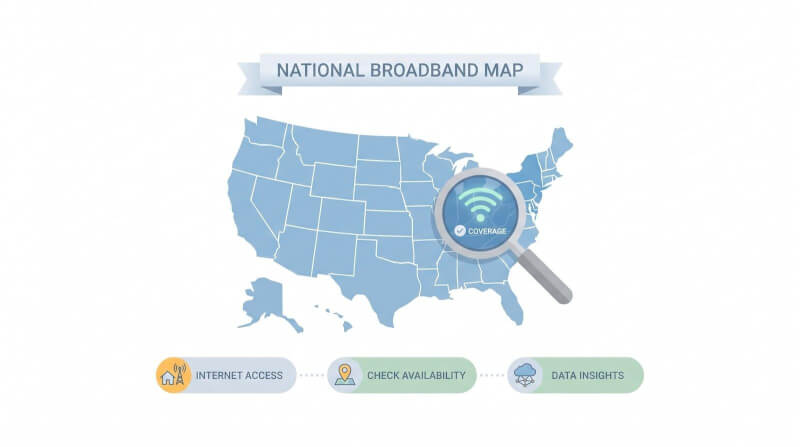
Plug your full street address (unit included) into the FCC National Broadband Map.
Verify each provider’s checkout tool for plan, price, and earliest install date.
Book activation for the day before move-in, and coordinate keys with the landlord or seller.
Run a wired speed test and a quick video call, keeping a phone hotspot as backup.
Do those four tasks, and you’ll unlock the front door to instant Wi-Fi.
Check the FCC National Broadband Map
Enter your complete street address (unit or lot included) into the FCC National Broadband Map, then read the sidebar that lists each provider, its connection type, and the top advertised download and upload speeds.
Those entries come from semi-annual filings due March 1 and September 1, so a brand-new build or recent upgrade may be missing. Treat the map as a first filter, not a promise.
Source: Wowway.
Zoom all the way in. Two houses on the same block can show different options because a fiber drop or coax line often stops at the corner.
Write down which technologies (fiber, cable, fixed wireless, or satellite) appear next to each company. In the next step you will confirm those claims against the provider’s own checkout tool, saving time on a network that never reaches your wall plate.
Verify results on each provider’s address checker
The FCC map sketches availability; the checkout page shows the reality at your door.
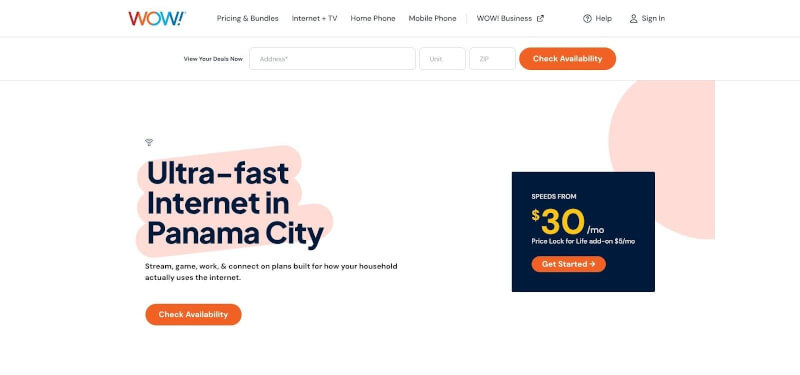
Enter the same full address (unit or lot included) into every provider’s lookup and note three facts: connection type, the speed tiers that appear in cart, and the first installation slot. Those fields can shift house to house.
Source: Wowway.
Panama City ISP address checker screenshot showing plans and install dates
Work methodically. Start with national footprints like AT&T Panama City internet and Xfinity, then move to growing builds such as Clearwave Fiber.
Finish by checking pricing and appointment windows on WOW!’s Panama City, FL internet service page, which lists plan tiers from 300 Mbps up to 2 Gig and highlights a free self-install kit that can shave a move fee.
Collect each plan’s monthly price, equipment fee, typical download and upload speeds, data policy, and the earliest install date in a simple spreadsheet. Today’s “self-install tomorrow” could sit next to a rival’s 14-day technician visit.
You will use those figures in the next section to compare first-year cost and decide whether to transfer or start fresh.
Confirm wiring and access with the property owner
Paper records tell only half the story; the people who hold the keys know which jacks still carry signal and which closets stay locked.
Before you finalize an installation window, call or email the landlord, seller, HOA board, or on-site manager.
Ask four concrete questions:
Which provider is live in the unit today, and is the line part of a bulk-service deal bundled into rent or dues?
Does the building restrict “approved providers,” exterior conduit, or drilling? (The FCC’s February 15 2022 multi-tenant-environment order requires any exclusivity to be disclosed.)
If the stack uses a locked telecom room, who can unlock it during the technician’s window?
Will anyone need to approve new hardware on common walls or ceilings?
When you pick up the keys, take a five-minute photo sweep: capture every coax or Ethernet outlet, any wall-mounted fiber terminal, and the exterior demarcation point.
Three or four clear photos help the installer prep and give you proof if a damage dispute surfaces months later.
Keep an eye on fresh fiber construction in Bay County
Bright orange conduit and “Fiber coming soon” yard signs look like instant upgrades, but a city permit is only step one.
Panama City’s commission approved a modified right-of-way fee for Clearwave Fiber on October 14 2025, a deal the company said could eventually reach “more than 80 percent of local homes.”
Progress since then has been visible yet piecemeal. Clearwave hosted a ribbon cutting in Lynn Haven in April 2026 to mark its first Bay County activations, and crews have bored conduit through St. Andrews; the company even donated to Rutherford High School’s robotics team to mark the launch.
Point Broadband’s merger with Clearwave layers in separate builds around Callaway and Mexico Beach.
Every new address still passes the same four phases: engineering, trenching, splicing, and finally service orders. Those steps can stretch from a few weeks to several months, especially if crews hit utilities or an HOA requests revised drawings.
Until a provider’s checkout tool flips from “Pre-registration” to “Order now,” treat the trucks as a preview, keep your current connection live, and plan to run the wired acceptance test once an install date is on the calendar.
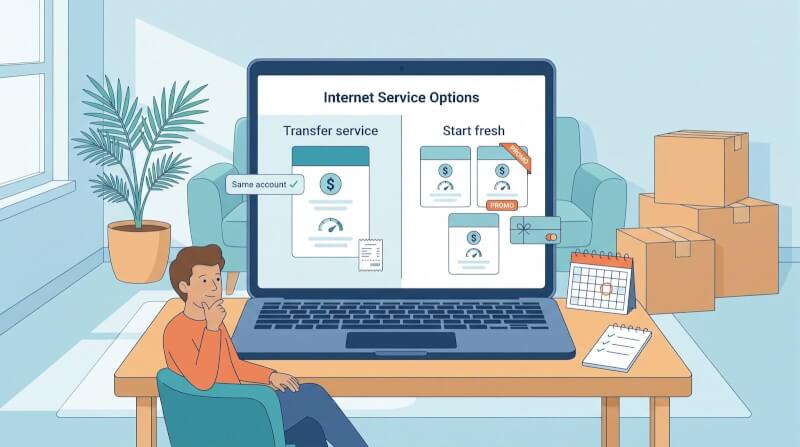
Decide whether to transfer your current service or start fresh
Source: Wowway.
Moving five miles with the same provider can feel like the easy button, and sometimes it is. Other times, dragging an old plan into a new ZIP slows everything down. Here is how to pick the right path before you shop further.
Transfer service when the same plan still fits
If the checkout page shows your new address as “available now,” a transfer keeps life simple: same account number, same email credentials, no portal to relearn. Before you schedule, pin the rep on three specifics:
Price and speed. Will today’s monthly rate and bandwidth follow you, or does the clock reset on promotions?
Fees. Is there a move fee (often $0-$50) or a required tech visit? Can you self-install with the gear already in your backpack?
Overlap window. Most providers allow 7-30 days of simultaneous service at both homes, so clarify the exact limit to keep packing day online.
Hardware still matters. Cable gateways and fiber ONTs do not always match the new wall jack; if an upgrade is mandatory, book the swap early so you are not chasing a return label while the truck idles.
Start fresh when the address changes the equation
Switch providers if the old company shows “unavailable,” downgrades you to DSL, or demands a new two-year term at a higher post-promo rate.
A move is also the perfect moment to rethink speed: 100 Mbps cable may have served you before, but a block with symmetrical fiber can halve upload times and erase video-call lag.
Compare total cost, not just the teaser. Pull each Broadband Facts label and record promo months, equipment fees, and the standard price that kicks in after, then weigh those numbers against the cost of overlapping your current line for a week.
If the math favors the newcomer and it can install before your first workday, order the new plan and set a calendar alert to cancel the old one only after the fresh line passes a speed-and-video test.
One last checkpoint: many new-customer gift cards expire if unclaimed within 60 or 90 days. Add that redemption date to your calendar the moment the confirmation email lands.
Compare the real cost, not just the introductory price
Source: Unsplash.
Intro deals look friendly, but the second bill tells the truth.
Every U.S. provider now posts a Broadband Facts label, mandated by the FCC’s November 2023 transparency order, to spell out monthly price, promo length, typical download and upload speeds, latency, equipment fees, contract term, data policy, and any early-termination charge.
Start with those labels plus the address-specific prices you already saved. Build one neutral sheet with these columns:
Introductory price
Promo months (usually 12 or 24)
Standard price after promo
Equipment rental or BYO discount
Installation or activation fee
Data cap or unlimited policy
Typical download, upload, and latency
Earliest install date
Alphabetize the providers so no one gets top billing.
The math often surprises you. A $35 cable plan that doubles to $70 after 12 months totals $630 in year one, while a $55 fiber plan that stays flat costs $660, only $30 more for steadier pricing.
A purchasable rate freeze such as Price Lock for Life at $5 extra per month ($60 a year) can beat the annual promo-hop hassle. Tally both sums, the discounted months and the first full-price year, before you click “Order.”
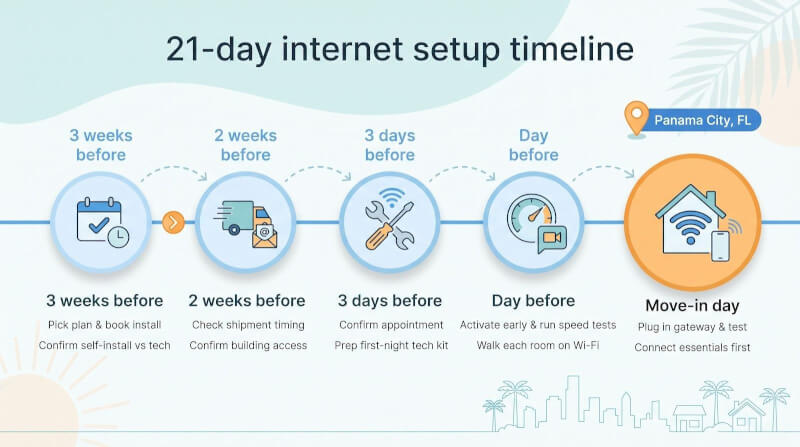
Use a 21-day internet setup timeline
Most providers, including T-Mobile’s April 15 2026 moving guide, recommend booking a transfer or new install two to three weeks (14-21 days) before move-in.
The calendar below follows that best-practice window and adds buffers for shipping (usually 2-5 business days) and technician backlogs that can stretch past a week in peak season.
Follow each checkpoint and you will unlock the front door to live Wi-Fi, not a blinking modem light.
Source: Wowway.
Three weeks before move-in
Shift from daydreams to calendar blocks. Open your shortlist and pick the plan that balances speed, total first-year cost, and the earliest install date.
Most providers publish new-address slots 14-21 days out, and during summer peaks those can vanish in hours. Click through checkout until you see the first available appointment and book it now; rescheduling later is easier than scrambling for a last-minute slot.
Still in the cart, choose the equipment path. If a self-install kit is offered, confirm the 2-5 business day shipping window and the delivery address.
If the page requires a technician, add the date and four-hour window to your phone with a two-hour reminder.
Next, email the landlord or seller. Technicians often need the utility closet, attic, or exterior wall, and those spots can sit behind keyed gates. Ask for written permission today because waiting until the truck rolls can delay activation by a week.
Finally, stage a safety net.
A phone hotspot or prepaid fixed-wireless modem costs about $10-$20 for a short data pass; that small spend keeps remote work alive if the install slips. Pack it beside the non-negotiables you refuse to box up: laptop, charger, and first-day coffee.
Two weeks before move-in
The order is placed, but the quiet middle weeks breed surprises.
First, open the tracking email and make sure the gateway or self-install kit will land before you leave the old address; most carriers list a 2-5 business day delivery window. If timing feels tight, reroute the box to a trusted friend or the leasing office so it is not sitting on a porch while you cross state lines.
Next, circle back to your property contact. Confirm they, or you, will have the right keys when the technician arrives.
Shared telecom closets often hide behind a second lock that maintenance controls; lining up that key now avoids a last-minute “cannot access the panel” reschedule.
Walk the floor plan once more in your head. Decide where the router will sit, which rooms need Ethernet, and whether the signal must reach a detached garage or porch camera.
Planning the spot today lets you order a longer patch cable or a starter mesh node now, not in a midnight panic.
Finally, test your safety net. Fire up the hotspot, connect your laptop, and run a quick video call. Five minutes today prevents the dreaded “hold on while I fix this” during your first remote meeting in the new house.
Three days before move-in
Tighten the last bolts. Text, chat, or open the provider app to confirm your installation window; if you do not get an automated “still on schedule” response within 30 minutes, call support and push for manual confirmation. Screenshot the result so you have proof if the van is a no-show.
If the hardware box has arrived, unbox it now. Match the power brick’s 120-volt rating to the outlet, check that the coax or fiber jumper is inside, and verify that the modem’s serial number matches the one listed in your online account. Catching a mismatch today saves an after-hours swap.
Walk the empty rooms with a free analyzer such as WiFiman or your phone’s built-in signal meter. Thick plaster, mirrored closets, and metal doors all dent coverage; mark any spot that drops below -65 dBm with painter’s tape so you can place a mesh node or run Ethernet before boxes block the walls.
Last, assemble a first-night tech kit (gateway, power strip, 6-foot patch cable, mini screwdriver, fully charged hotspot) and stash it in your car instead of the moving truck. That kit guarantees you can plug in the moment you reach the driveway.
The day before move-in
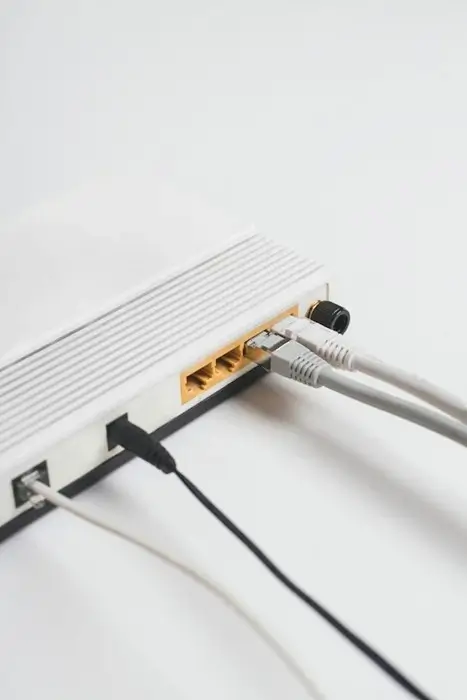
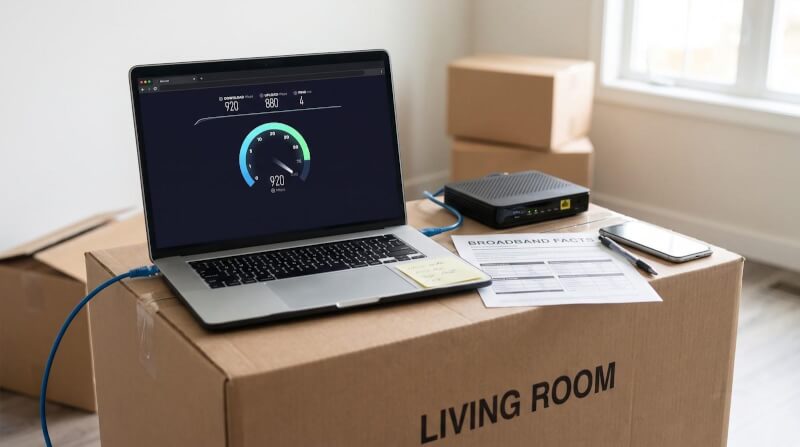
If the property is legally in your hands, plug the gateway in now. Early activation buys time for surprise firmware updates, mislabeled ports, or a missing coax tap outside. Follow the provider’s steps until the status light turns solid and the admin page shows a public IP.
Run three wired tests with a reputable tool such as Speedtest by Ookla or Cloudflare Speed Test.
Average the results; they should fall within ±20 percent of the typical download and upload speeds on your saved Broadband Facts label.
Next, start a five-minute video call and walk each main room while streaming a 4 K YouTube clip. Google recommends 20 Mbps sustained for 4 K UHD. Note any stalls because those rooms are first in line for a mesh node or Ethernet run.
Screenshot the wired average, the worst Wi-Fi room, and the label, then drop them into a dated folder. That archive lets you escalate if tomorrow’s bill or next month’s performance slips.
Last, power up the backup hotspot and leave it charging on the kitchen counter. If a contractor snips the line during tomorrow’s furniture shuffle, you will still be online.
Move-in day
Keep your first-night tech kit out of the sofa shuffle.
Plug the gateway into its permanent outlet before any bookcase hides the jack and watch for a solid power light. Run one wired and one Wi-Fi speed test; results should sit within ±20 percent of yesterday’s average. Launch a two-minute video call to confirm audio stays clear. Screenshot both numbers for your records.
Connect only mission-critical devices first: work laptop, security-camera hub, phone. Hold off on smart bulbs and streaming boxes until the dust settles because a light load makes it obvious if one device or cable chokes the network.
Expecting a technician today? Leave a three-foot aisle from the door to the wall plate and exterior access point. Techs finish faster when they are not hurdling moving blankets.
Once the line is live, rerun the wired test on the installer’s laptop or yours; any dip larger than that 20 percent benchmark warrants on-the-spot diagnostics.
Hotspot still charged? Slide it into a top drawer for storm season. Congratulations, you are officially online in your new Panama City home.
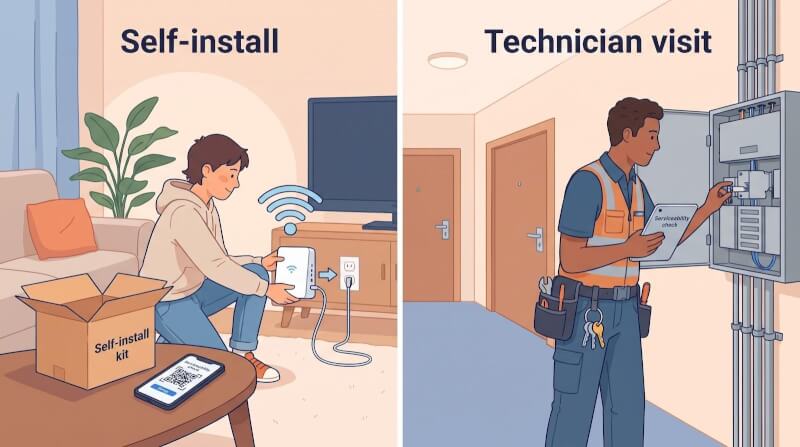
Know whether self-install or a technician visit is realistic
Source: Wowway.
A self-install is more likely when the wiring already works
Cable and fiber providers pre-configure gateways to activate over an existing drop.
If the previous tenant was streaming Netflix last week and the wall jack still carries signal, you can usually scan a QR code and surf in 15-30 minutes. Providers label these addresses “self-install eligible” during checkout and ship the kit 2-5 business days before move-in.
Self-install also excels when you stick with the same technology (cable-to-cable or fiber-to-fiber) because the jack type, splitter, and modem class already match.
You skip the $50-$100 technician fee that appears when someone must swap an optical network terminal or re-terminate coax outside.
The bonus: no four-hour wait window. You choose the hour, plug in the box, and run your acceptance tests on your schedule.
A technician is more likely when new work is required
Fresh construction often shows a blank square on the FCC map because the address missed the last twice-a-year filing.
Providers flag these as “serviceability checks,” which trigger an on-site visit. The tech may light-meter the fiber, tone the coax, or escalate to engineering if the drop never made it past the curb.
Switching technologies also tips the scale. Upgrading from cable to fiber brings an optical network terminal that needs power, grounding, and sometimes a pencil-width hole through the exterior wall.
Carriers refuse to mail that gear because one bad splice or missed ground bond balloons support calls. The same goes for a fixed-wireless antenna that must align with a neighborhood tower.
Renters and condo owners face another hurdle: locked telecom rooms. Even if your unit once had working service, building managers usually keep the riser closet under key.
Technicians carry the right punch-down tools but need the appointment notes to spell out access. Loop the landlord in early so no one is hunting keys while you pace the hallway.
Special considerations for renters and condo residents
Multi-unit buildings add one more decision-maker: the association or property manager. Bulk agreements sometimes lock the complex into a single provider.
If bulk service exists, you can still order personal internet, but you will pay twice and any new holes or exterior boxes usually need written HOA approval.
Ask for the building’s “internet rules” during the apartment tour. Look for clauses on approved providers, drilling limits, equipment mounting, and after-hours access.
If fiber reaches only a hallway cabinet, confirm how, and when, the cabinet key changes hands. Nothing stalls an install like a technician waiting in the lobby while nobody with a master key is on shift.
Condo boards often restrict visible wiring on balconies and exterior walls. Fixed-wireless antennas and fresh fiber drops require neat conduit runs or paint-matched clamps. Get the board’s sign-off in writing and keep the email trail so you are covered when the next inspection rolls around.
Choose speed by upload, latency, and household use
Source: Unsplash.
Use 100/20 Mbps as a policy benchmark, not an automatic upsell
The FCC’s 2024 broadband report raised the fixed-service benchmark to 100 Mbps down and 20 Mbps up, four times the old 25/3 yard-stick.
Treat that figure like a posted speed limit: safe for basic traffic, but not the only sensible pace. A two-person household that streams a single 4 K movie and joins one video call can cruise at 100/20.
Go faster only when your work-from-home rig, game console, or nightly cloud-backup habit demands extra horsepower.
Remote work and video meetings
Video platforms struggle with weak upload long before download stalls. Zoom’s own spec calls for roughly 3.8 Mbps up and 3.0 Mbps down for 1080p HD.
Add a second caller and a cloud-sync task, and you can swamp a 10 Mbps upstream pipe. Budget 20 Mbps upload per simultaneous caller so screen-shares and VPN traffic still breathe.
Latency matters too: fiber or modern cable hovers at 10-30 ms, whereas 5 G or fixed wireless can double that during busy hours. If your Broadband Facts label lists higher latency, plan to hard-wire the work laptop and pause background syncs during meetings.
Gaming
Shooters and racers care more about ping and packet loss than headline speed. Aim for a 25 ms or lower round trip; a 75 ms spike means you are out before the screen shows the hit marker.
Ethernet is the cheapest fix because even Wi-Fi 6 can add jitter under heavy load. If cable is your only wired option, pick the tier with the biggest upload (often 20-35 Mbps) to keep constant position packets flowing. Fiber’s symmetrical link removes that worry.
Streaming and large households
YouTube recommends 20 Mbps sustained for a single 4 K stream. Two 4 K TVs, a Twitch broadcast, and half a dozen smart speakers can top 80 Mbps before anyone starts a game download.
Count devices and habits, not just people: if the home approaches 10 active gadgets per resident, look at a 300-500 Mbps download with at least 20 Mbps upload tier (or symmetrical 300/300 fiber) plus a mesh kit that pushes signal to patio and garage.
Content creation and cloud backup
Upload rules when you publish or archive large files. A 10-minute 4 K vlog (about 5 GB or 40 Gb) takes about 7 minutes on a 100 Mbps upstream but 45 minutes at 10 Mbps.
Check each plan’s typical upload in the Broadband Facts label, not just the advertised “up to,” and run a quick divide-by-speed sanity check before you hit “Order.”
Run a 15-minute acceptance test before moving in
Establish a wired baseline
Connect a gigabit-Ethernet laptop directly to the gateway, disable Wi-Fi, and run three consecutive tests with a trusted tool such as Speedtest by Ookla or Cloudflare Speed Test.
Average the download, upload, and latency numbers. They should land within plus or minus 20 percent of the typical speeds on your saved Broadband Facts label, and latency should stay within two times the label figure.
Variance beyond those marks is a red flag, so open a support chat before furniture blocks the outlet.
Source: Wowway.
Test Wi-Fi where it matters
Unplug Ethernet, re-enable Wi-Fi, and walk the spots you will actually sit: office desk, living-room couch, main bedroom, even the patio if sunset calls are your thing. Run a 60-second test in each room.
Aim to keep download and upload within 30 percent of the wired baseline and latency no more than 10 ms higher. Bigger drops mark walls or appliances that will need a mesh node.
Fire up a dummy Zoom or Teams call from the farthest corner. (Zoom lists 3.8 Mbps up and 3.0 Mbps down for 1080p HD.)
If audio crackles or video freezes, jot the room on a sticky note for later hard-wiring. Finish with a quick upload of a sample work file, large enough to matter yet small enough to cancel if speeds tank.
Reproduce real workloads
Launch the apps that run your Mondays: Slack, a live Teams meeting, a Git push, or a 4 K clip upload, simultaneously if that is your norm. Leave a streaming stick playing 4 K YouTube in the background.
If frames drop on the call while the TV buffers, note the time and device; that clue points to quality-of-service tweaks or a speed-tier bump.
Conclude by emailing yourself the uploaded file and downloading it back. A smooth round trip proves both directions of the pipe under load.
Secure the network
Passed every test? Lock it down. Log into the gateway, change the default admin password, and paste it into a password manager.
Create a fresh SSID and strong passphrase, disable WPS, and check for firmware updates; enable auto-update if offered.
Spin up a guest network for visitors and smart-home gear, then print a fridge card with the guest credentials so no one digs through texts to find the Wi-Fi.
Conclusion
Source: Unsplash.
Setting up internet before a single box crosses the threshold is not magic, it is just a calendar and a checklist.
Start three weeks out: check your exact address on the FCC map, confirm every option in each provider’s address tool, and lock the earliest install date.
Compare first-year costs (upload, latency, equipment, promo length) rather than the splashy headline rate, then pick the plan that fits your real workload.
During the countdown, secure building access, track the shipment, and keep a phone hotspot charged. The day before move-in, activate early, run your wired baseline, walk every room on Wi-Fi, and save the screenshots next to your Broadband Facts label.
Tighten your gateway’s security, stash the admin credentials in a password manager, and set a calendar nudge to review the first bill and return any old equipment.
Follow that rhythm and you will unlock the door, brew the first cup, and stream a victory movie with zero blinking modem lights or moving-day scramble. Found this guide helpful? Tap the share icon or bookmark it for your next address change.
Disclaimer:
This post may contain affiliate links. I receive a small commission at no cost to you when you make a purchase using my link.